On this page
Setup – Always bypass resolution confirmation
Setup – Selective bypass of resolution confirmation
The default Movidesk support workflow requires customers to confirm a ticket’s resolution before the ticket can be closed. This means an agent can resolve a ticket, but the ticket will not be closed until the customer confirmation is received.
Outside of APIs and integrations, the only other way to close a ticket is through Triggers. For example, there is a default (pre-configured) trigger that will close resolved tickets after five days.
The step of confirming the ticket resolution with the customer may not be appropriate for all organizations, or in every scenario. This article will explain how to configure triggers to bypass the resolution confirmation and close a ticket when it is marked as resolved.
If you have not read the Introduction to triggers article, we strongly recommend reading that article first. It covers how to grant permission to create triggers and basic concepts that will helpful when following this guide.
Setup – Always bypass resolution confirmation
If using a resolution confirmation step is simply not applicable to your organization, you can configure a trigger to close the ticket as soon as it is marked as resolved.
Follow the steps below to configure a trigger that will change the ticket status to “Closed” as soon as the ticket is updated to any status that has a Base status of Resolved.
Go to Configurations > Triggers and select the green ✚ icon to create a new trigger.
Enter a name for the trigger and select Tickets as the trigger type.
This trigger will only have a single condition, so we can add the condition to either the AND conditions section or to the OR conditions section. In this example let’s add it to the AND conditions section.
Add the following condition to the AND conditions section:
|
Property |
Operator |
Value |
|
*Ticket » Base status |
*Updated to |
Resolved |
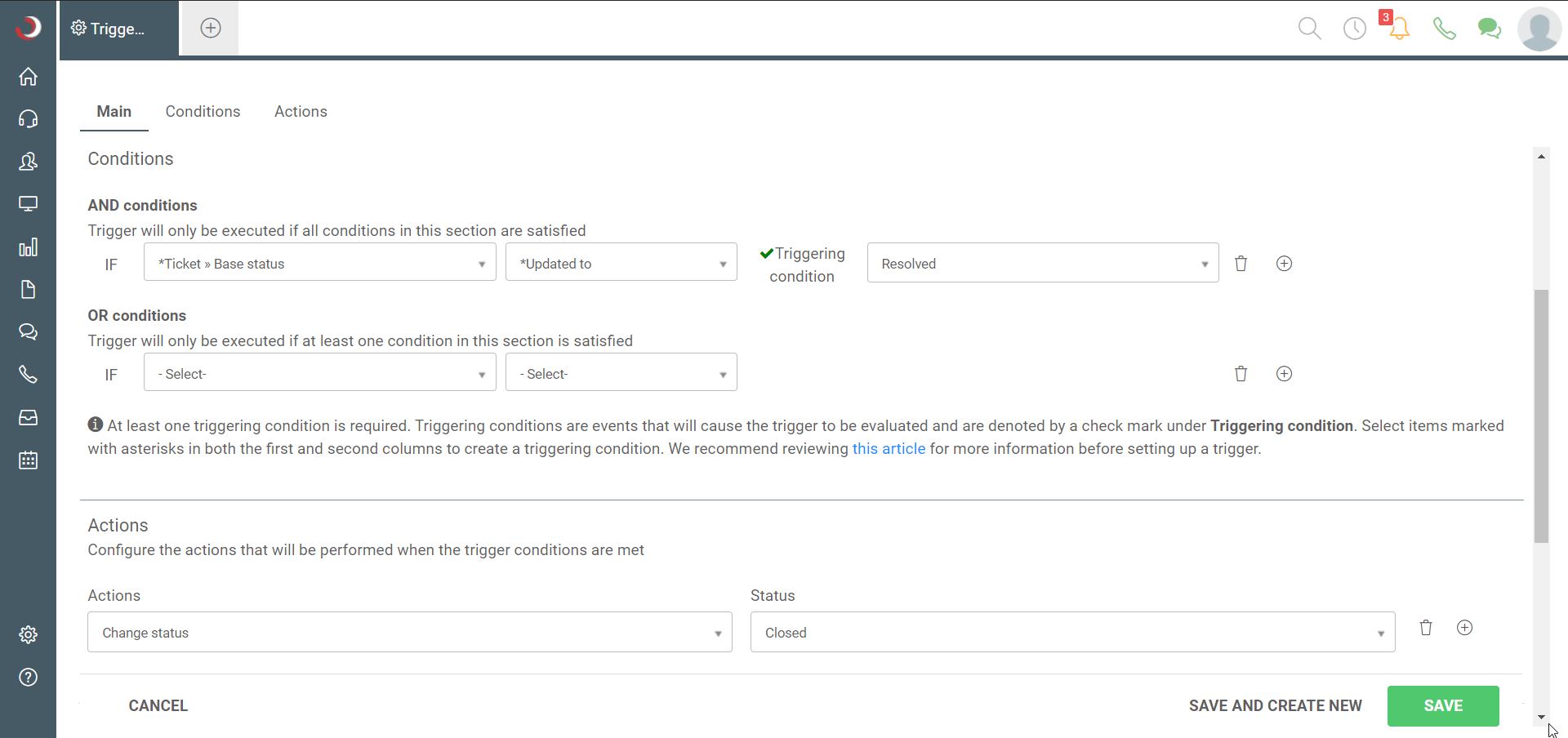
Note from the asterisks in both the Property and Operator that this will be a “triggering condition”, which satisfies the requirement of at least one triggering condition for a trigger.
Add a trigger action of Change status, and select “Closed” as the status.
|
|
Instead of the “Closed” status, you could instead select any other status with Base status of Closed. Any status with a base status of Closed will close the ticket. |

After adding the trigger condition and action, your trigger should look like this:
Update related triggers
Remember to update or disable this default trigger to prevent customers from being notified twice when a ticket is closed:
Ticket is resolved – By an agent – Only public tickets – Sends email notification to ticket requester
You may also want to verify that the following default trigger is enabled, or that an equivalent trigger has been set up to notify customers when a ticket is closed:
Ticket is closed – Customer satisfaction survey pending – Only public tickets – Sends email survey to ticket requester
Setup – Selective bypass of resolution confirmation
For some organizations the resolution confirmation step is applicable in some scenarios, but should be bypassed in some cases.
In that case you should configure a trigger similar to the above, but update the conditions to fit the specific scenarios when the ticket should be closed without a resolution confirmation.
For example, you can add the following conditions to the AND conditions section. This will create a trigger that will fire whenever the tag “Bypass resolution confirmation” is added and a user with the access profile “Admin” adds a note.
|
Property |
Operator |
Value |
|
*Note–most recent » Primary events |
*Added |
Resolved |
|
Note–most recent » Creator » Access profile |
Equal to |
Admin |
|
*Ticket » Tag |
Equal to |
Bypass resolution confirmation |
Finally, add a trigger action of Change status, and select the status “Closed” or an equivalent before saving the new trigger.
Update related triggers
Remember to also update other triggers related to resolving or closing tickets as needed. For example, you may want to update the following default trigger to prevent customers from being notified twice when a ticket is closed without a resolution confirmation:
Ticket is resolved – By an agent – Only public tickets – Sends email notification to ticket requester
Read also:
Related Topics: Close ticket without accepting, Skip accepting ticket, Skip accept resolution, Skip resolution confirmation, Skip resolution approval, Skip resolve ticket, Bypass resolve ticket, Bypass ticket resolution, Do not prompt customer to accept, Don’t prompt customer to accept, Don’t prompt customer after resolve, Don’t ask customer to accept, Just close ticket, Close without resolve.