On this page
When to use Movidesk Workflows
Access policies using Workflows
When to use Movidesk Workflows
Use Movidesk Workflows if you have clearly defined task sequences and want an additional layer of control in their execution.
Did the thought “I must ensure that when this happens the following steps are taken…” cross your mind? If so, Workflows will probably be a great tool for you.
Workflows are useful to:
- Enforce a pre-determined task sequence.
- Manage tickets through a regular workflow (or through a part of a workflow), with a different layer of visibility than what’s provided by ticket statuses.
- Guide agents and customers through different task sequences in different business scenarios.
- Simplify and automate ticket transfers between agents and teams.
- Use workflow phases as conditions for access policies, triggers, and SLAs.
Applying Workflows
The controlled Movidesk Workflows can be applied to a part—or all—of an operational task sequence, and can be used for any department in your organization.
Workflows can drive an overall standard operational process, or they can be conditional to certain scenarios in the same way as Triggers. You can set up conditions using one or more of the following as parameters: ticket data, People data, services, communication channels, dates, and custom fields.
Use multiple Workflows to address different situations. For example, if a ticket’s Category is set to “Defect,” you may want to force a work flow that looks like this:
|
Step 1 |
Understand and simulate reported defect |
Owner: Level 1 team |
|
Step 2 |
Confirm and categorize defect |
Owner: Level 2 team |
|
Step 3 |
Fix defect in software |
Owner: Product maintenance |
|
Step 4 |
Inform customer of fix release |
Owner: Level 1 team |
Workflow sequences can have as many phases (steps) as necessary. Each phase can be configured to allow or prevent agents from cancelling or resolving tickets.
We recommend you add Workflows to your configurations gradually. Mastering the use of this control tool will help you avoid configuring cumbersome or inefficient processes.
Routine work with Workflows
Workflows are automatically applied to a ticket when the ticket meets the conditions configured for that Workflow. Once a Workflow is applied to a ticket:
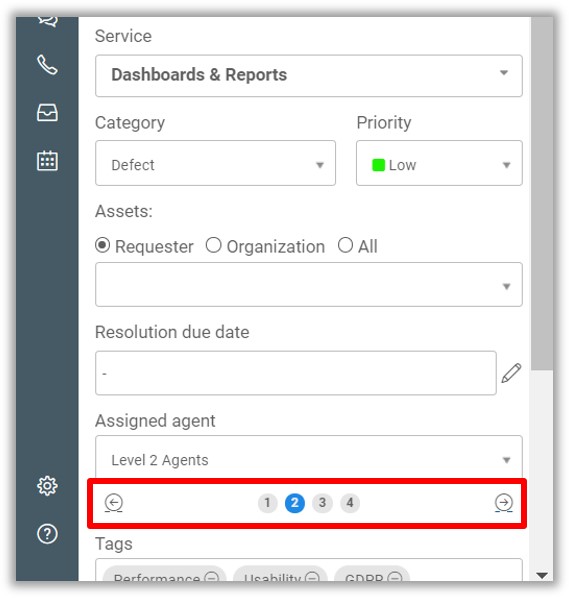
- A task sequence indicator with Next and Previous arrows are displayed on the left pane of the ticket (see the image below).
- The assigned agent can move the ticket to next Workflow phase by selecting the arrow to the right. The agent can also return the ticket to the previous phase by selecting the arrow to the left.
- When an agent moves a ticket to another phase, the system will automatically reassign the ticket to the agent or team that has been configured in the Workflow. When the ticket is reassigned to a Team, the agent may also select a specific agent from a drop-down list of agents on the Team.
- Agents assigned as Managers in the Workflow settings can move the ticket forward or backward to any phase. They can also resolve or cancel a ticket at any time.
- In the ticket’s Change log, users can view when the Workflow was applied to the ticket, each phase transition, and when it was completed. Note that the phase transitions in the Change log are not visible to customers.
- The Ticket details view (under Options in the ticket form) will show the current phase of the Workflow. The current Workflow phase is also visible when a ticket is printed.
Maintaining Workflows
You can clone, disable, re-enable, and delete your Workflows at any time. Disabling or deleting Workflows will automatically remove them from existing tickets.
You can also filter your list of Workflows, and export Workflows to an Excel spreadsheet.
See the Configuring workflows article for more information.
Workflows in ticket views
You can modify or create ticket views to include columns that display the Workflow applied to tickets, and their current Workflow phase. See the Managing ticket panels and views article for more information.
Triggers using Workflows
You can use Workflows as a parameter for Trigger conditions. See the Introduction to triggers article for more information.
Access policies using Workflows
You can use Workflows as a parameter for rule-based permissions in Access profiles. See the Access profiles article for more information.
SLAs using Workflows
You can use Workflows as a parameter in SLA conditions. See the Configuring SLA policies and terms article for more information.
Related Topics: Sequencing workflows. Workflow applications. When to use workflows. Exporting workflows. Workflow authorizations. Workflow permissions. Workflow managers.