On this page
Understanding Services and service catalogs
What to consider when designing your service catalog
Granting permission to create, view, and select Services
Disabling and enabling Services
Creating and exporting a Services list to Excel spreadsheets
Understanding Services and service catalogs
A Service in Movidesk specifies any aspect which you will provide a service for—either to your external or internal customers. Namely, it can be anything you want to use as a reference for your support or service activities, such as:
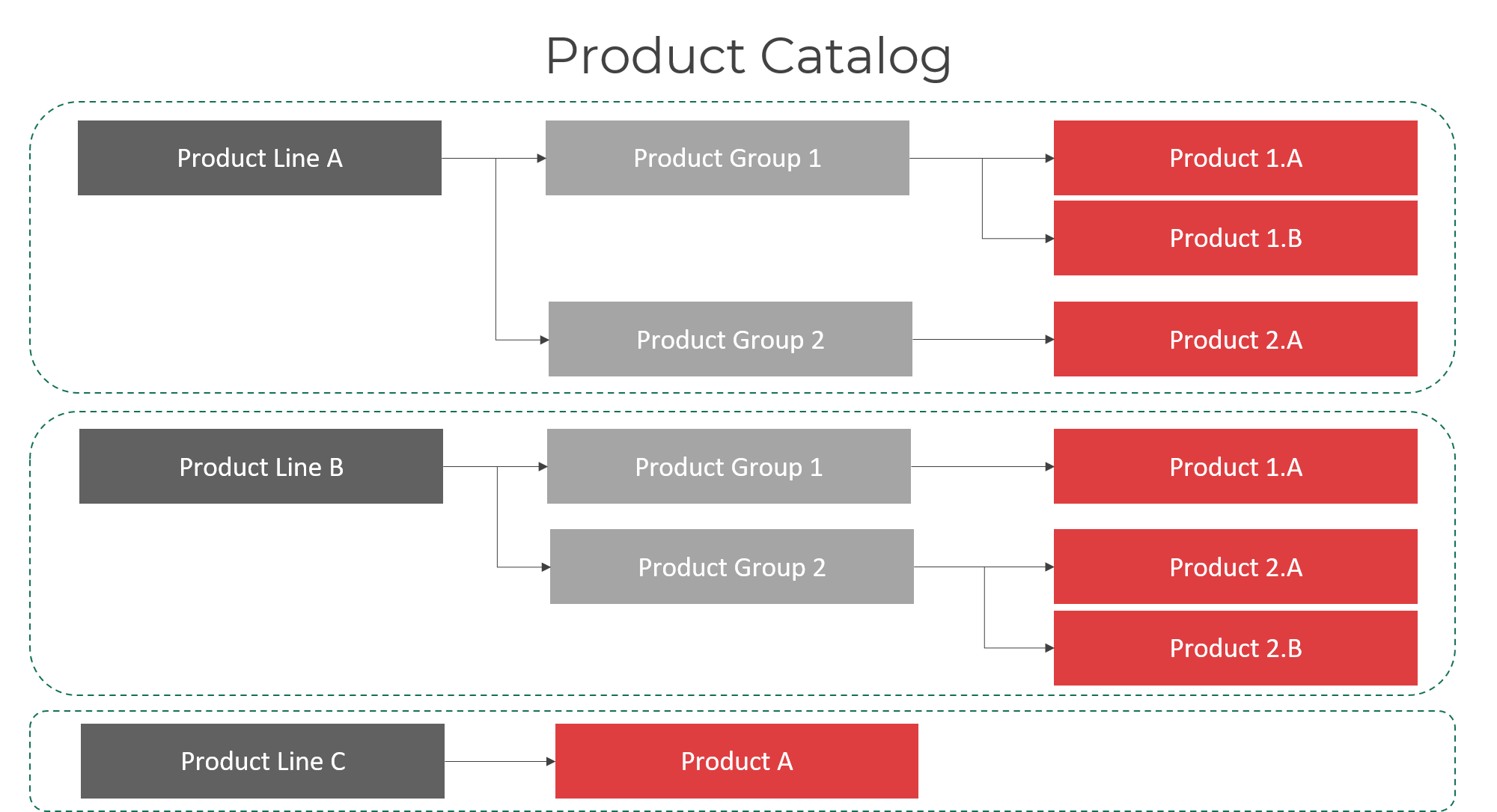
- Products – You can build a product catalog using a service structure. For example, you can create product lines in your first structure level, product groups in your second level, products in your third level, and parts in your fourth level.
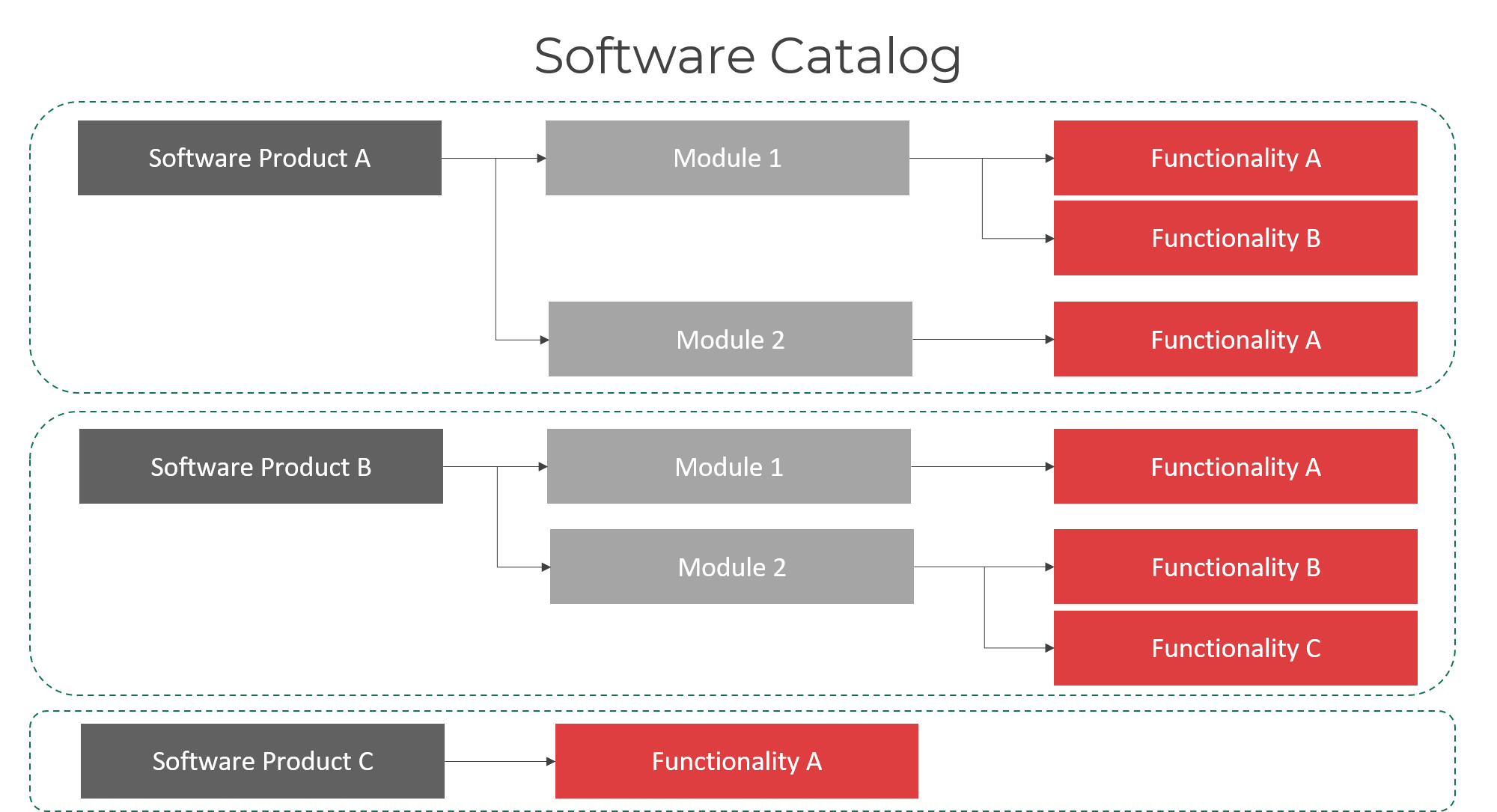
- Software – You can also build a software catalog using a service structure. For example, you can create software lines of solutions in the first structure level, software products on a second level, and functionalities on a third level of the catalog.
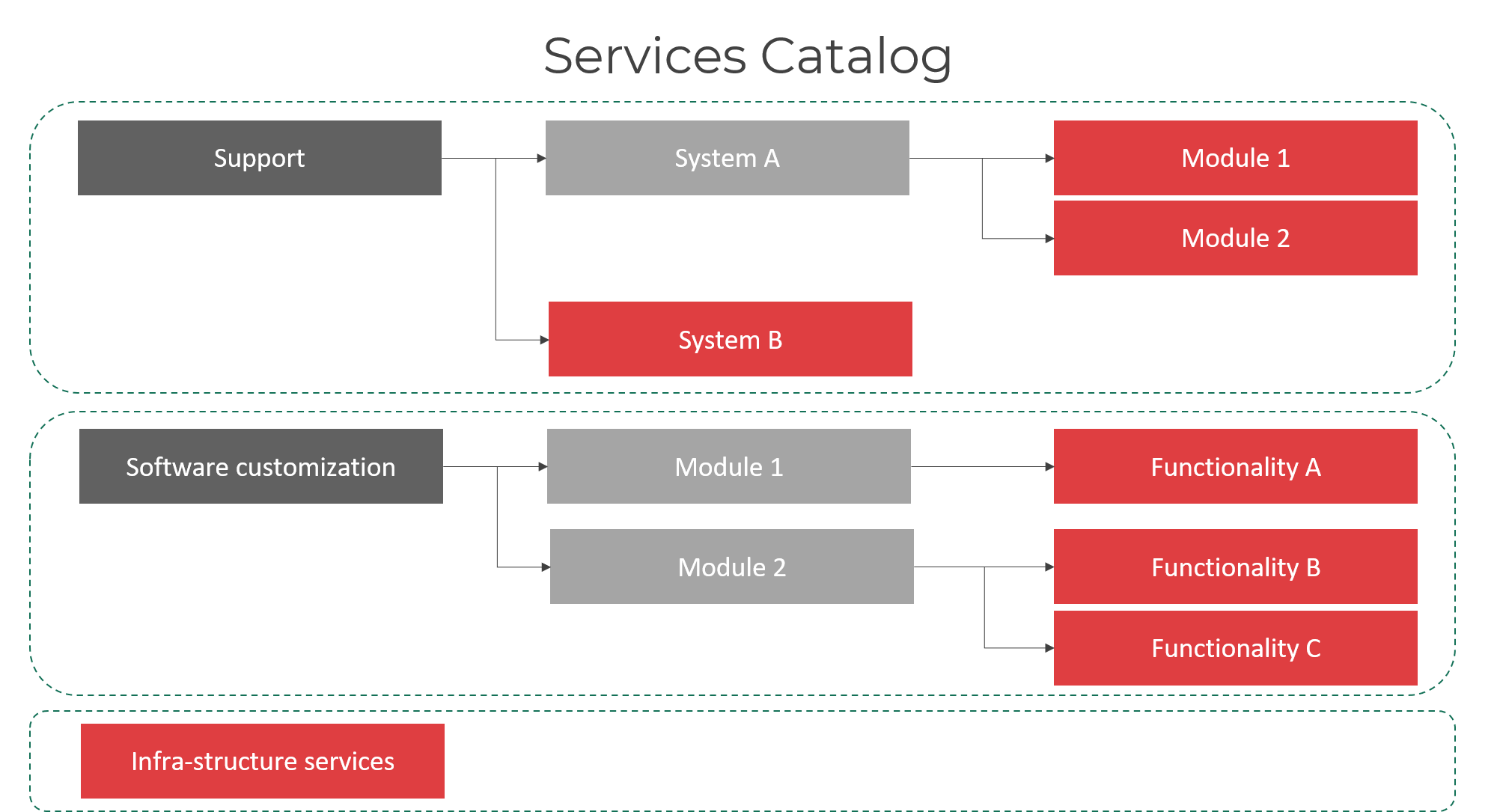
- Services – If you are a service provider, you can specify groups of services, business units, types of customers, or any other groupings and sub-groupings that your business requires. For example, you can use the multi-level structure of services for one or more of these groupings, and then specify your service items, creating a flexible service catalog.
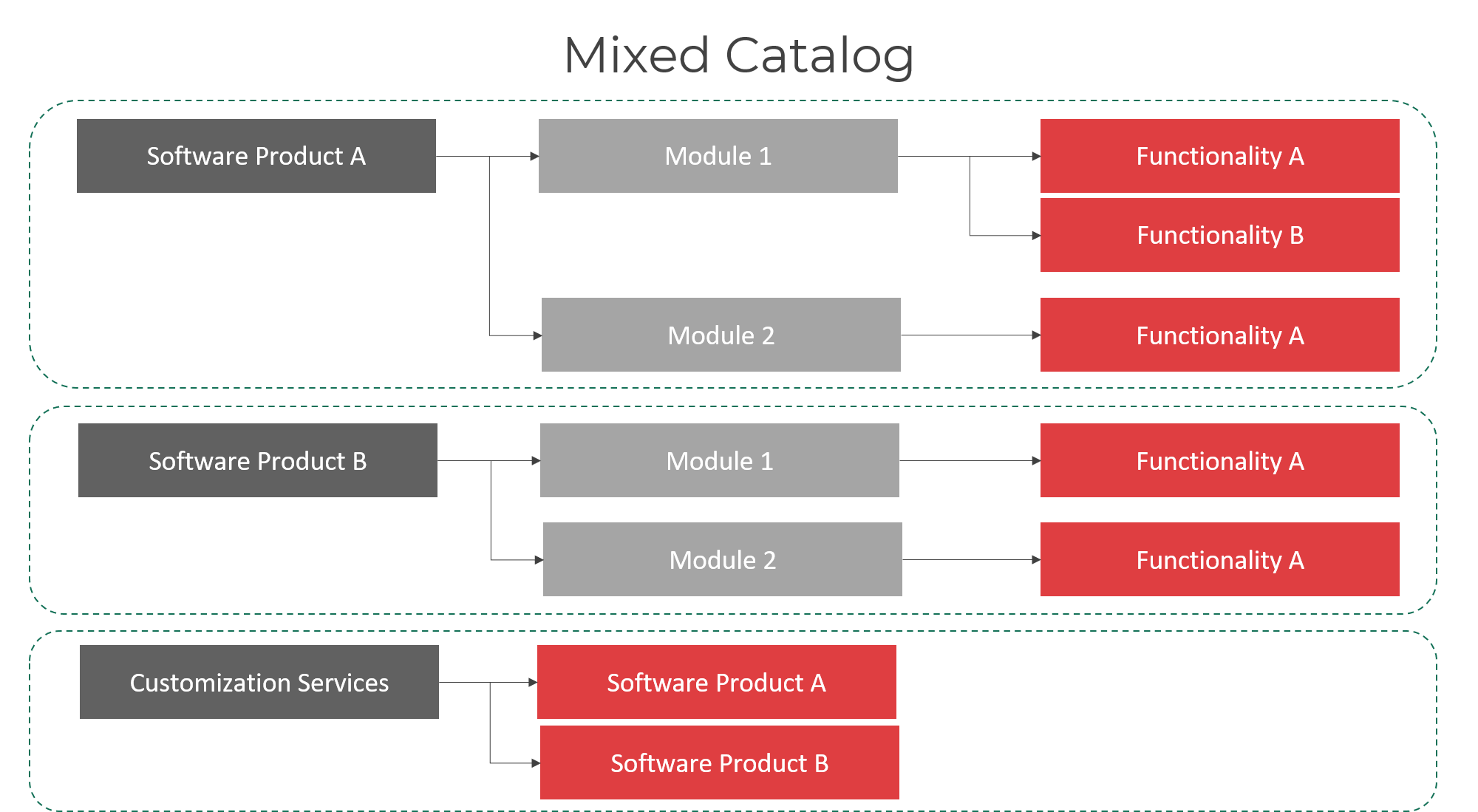
You can also mix and match the above items to reflect your needs. Final catalog structures may look like these:
What to consider when designing your service catalog
Your service catalog is one of the most important parts of Movidesk’s configuration and some upfront analysis is well worth your time. The right design and structure will increase the system ease-of-use for your customers and will provide you with the right references for your automations—while also giving you visibility into the right level of details through metrics and reports.
Here are important aspects to take into consideration when designing your service catalog:
-
- Define all the services you will provide when using Movidesk. Think of products, services, and other departments—maybe product management, finance, sales, or marketing should also be part of your catalog. If you intend to add multiple departments, consider doing it in a phased approach.
- Evaluate what metrics and controls you already have. Think of what you’re missing and what you would like to have in the future. Use that when defining the levels of your service catalog, as these will not only determine the levels in which you will have your metrics and reports, but also the references available to you when creating automations and defining access permissions.
- Metrics, dashboards, and reports will be broken down at the service structure level.
- Triggers and automations may be setup using specific service structure levels.
- Knowledge base articles may be related to services at specific structure levels for ease of article maintenance.
- Macros and triggers can be applied automatically to tickets with a specific service—also at its different structure levels.
- Access profiles can be used to limit which services a customer can select.
- Think of the way your customers will interact with your service catalog. Design your structure so that users will find what they are looking for more easily when selecting the desired product, service, or software functionality.
- Adjust service catalog item names to make service identification easy for customers.
|
|
Warning If a service catalog item is deleted, metrics related to that item will no longer be available. |

Granting permission to create, view, and select Services
Agents
To grant an agent permission to create and edit services in the catalog, go to Configurations > Access profiles, select the Configurations tab, and select User can maintain services.
This will grant the user permission to create, edit, and delete services in the catalog.
|
|
Note After the Access profile is updated, the user may need to refresh their browser page before they can access Configurations > Services. |

To grant an agent permission to view and select a service on tickets, go to Configurations > Access profiles and select the Tickets tab. Find the parameter User can select when creating tickets and select Service.
Customers
To grant a customer permission to select a service when creating a ticket, go to Configurations > Access profiles and select the Tickets tab. Find the parameter User can select when creating tickets and select Service.
To grant a customer view-only permission for the service on tickets, go to Configurations > Access profiles and select the Tickets tab. Find the parameter User has view-only access to and select Service.
Creating Services
To create Services (items in the service catalog), go to Configurations, find the Ticket classification section, then select Services.
On the left pane (see image below) is the service catalog structure, where you can view and select items at any level of your structure. It works just like the popular “tree structure” of files in your personal computer:
- Service catalog is the root level and starting point for you to build your service catalog.
- An arrow to the left of an item in your structure means you have sub-items under that item.
- To see its sub-items, simply select the arrow.
- To collapse the sub-items under an item, just select the arrow to the left again.
- Once you select an item in the structure on the left pane:
- On the right pane, under the title Services, all sub-items under the selected item will be listed.
- Select the green ✚ icon to create new Services (catalog items). The new Service will be a sub-item of the item you selected on the left pane.
- If you can’t see the item you are looking for in the right pane, make sure you have selected the item above it in the catalog structure on the left pane—or Service catalog (the root level) if you are looking for a first-level item.
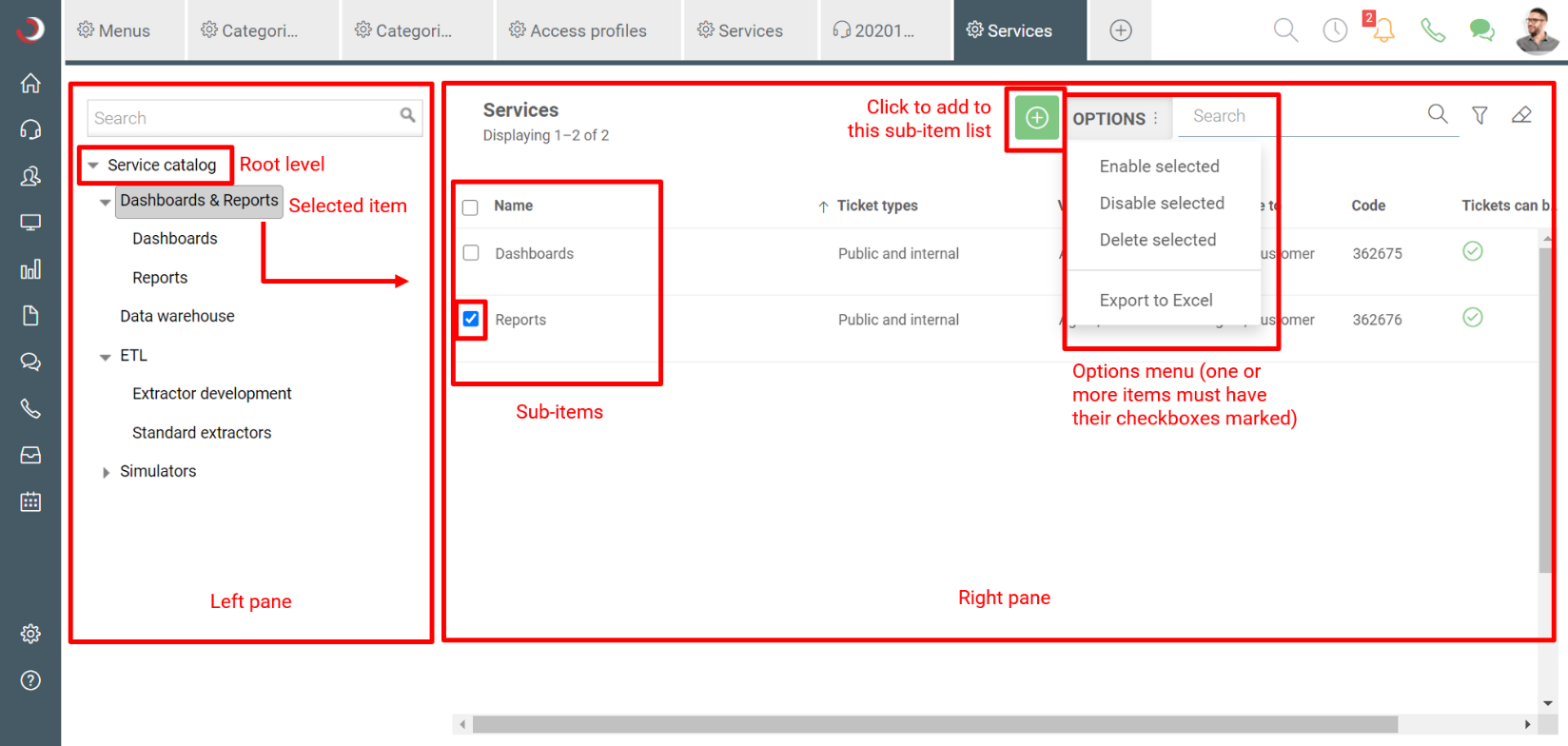
To start creating your service catalog, select Service catalog on the left pane, then select the green ✚ icon to create your first Service. Use the navigation instructions above to add more items to the same level or create sub-items.
|
|
Warning Be careful when creating services, as a service cannot be moved to a different level after it’s been created. If you make a mistake, you can always delete the service and create a new service in the appropriate place on the structure. |

Once you selected the green ✚ icon, configure your new Service:
- Enter a name for your service catalog item.
- Optionally, add a description for your item. This description will appear in your ticket drop-down list of Services, so use recommend using descriptions only if necessary, and to keep them brief.
- Select whether this service will be applicable to Public tickets, Internal tickets, or both.
- Select whether this service will be visible to Agents, Customers, or both.
- Select whether this service can be selected by Agents, Customers, or both.
- Select Tickets can be closed to allow tickets with this service to be closed. If disabled, an agent must update the service on a ticket before they can close the ticket.
You can use this parameter in situations like:- Your customer needs to use a specific term for a service catalog item, but within your company you use a different term. Your agent will be required to change the item prior to closing a ticket.
- You want to provide your customer with a simplified catalog, but for your automation, metrics, and control, you want to have services classified in further details. This will require tour agent to select lower level items prior to closing a ticket.
- Optionally, select a Macro that should be executed whenever a user selects this service in a ticket.
Explore the flexibility of macros to automatically classify tickets, assign tickets, add a questionnaire in the ticket note to guide users, add other text to the ticket note, or perform any other action you can configure within a Macro.
If there isn’t an existing macro with all the actions you require, just create a new macro. See the Using macros article for more information on how to create and configure macros.
- Select the ticket Categories that will be available for this service. Clear the Allow all categories parameter to select which categories users can select for this specific service.
- Select the default ticket Category and ticket Priority that should be set once this service is selected in a ticket.
- A Fixed participant list will determine a fixed list of invitees that cannot be modified for any event related to a ticket with this service. If you may need to add or remove invitees depending on the ticket, leave this list blank and add the invitees directly on the calendar events instead.
- Select Use a fixed duration for calendar events if you want to pre-establish a duration for all calendar events related to tickets with this service selected. Note that if this option is selected, the event duration will be enforced and cannot be altered by users.
- Select Save.
|
|
Tip Use Save and create new for fast manual input. For large quantity of items (products, software, or services) use the Services API. |

|
|
Tip You can create as many levels in your service catalog as you like, but we recommend using no more than four levels for ease of use. |

Deleting Services
To delete one or more items of your catalog, find the items you want to delete in the right pane. Select the checkboxes next to those items, then select Options and Delete selected.
You can also delete a single item when editing it by selecting Delete on the lower-left corner.
Disabling and enabling Services
If you don’t want to delete an item because you may use it again in the future—or to maintain data integrity for metrics—you can just disable it instead.
To disabled one or more items of your catalog, find the items you want to disable in the right pane. Select the checkboxes next to those items, then select Options and Disable selected. You can follow the same process to reenable items by selecting Options and Enable selected.
Creating and exporting a Services list to Excel spreadsheets
You can export a list of items from your service catalog by using a filter. Select the filter icon on the upper-right corner, to the right of the search box. Select the filtering criteria you want, then select Search.
Once you created a list according to your search criteria, select Options and Export to Excel. This will automatically download an Excel spreadsheet with the filtered results.
Related Topics: Creating a software catalog. Creating a product catalog. Services catalog display.