On this page
Accessing to the Telephony module
Changing your telephony status
Registering the caller as a customer
Associating phone calls with tickets
Viewing call details on tickets
This article will cover details on how to use the Telephony module after it has been configured in Movidesk. For information on how to configure the Telephony module, see the Understanding and enabling your telephony channel article.
Accessing to the Telephony module
Agents added to a call group will be able to access the Telephony module.
Select Telephony in the sidebar to open the telephony console and view calls waiting in queue and ongoing calls.
Agents that have been added to a call group as Administrators, will also be able to see metrics and monitor calls in the telephony console.
|
|
Note Agents must have a phone extension registered under Other contacts in their profile in order to answer a phone call in Movidesk. |

Changing your telephony status
Agents assigned to a call group can change their telephony status to Offline to indicate they are unavailable to answer customer phone calls.
Movidesk will not distribute phone calls to agents with an offline telephony status.
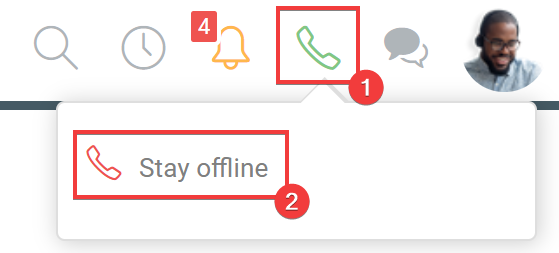
You can see whether you are online or offline by looking at the phone icon in the system header. If the icon is green, you are currently online. If the icon is red, you are currently offline.
To change your telephony status, select the phone icon in the system header. Select Stay offline to change your status to Offline, or Stay online to change your status to Online.
Receiving a phone call
Incoming phone calls will be listed in the Calls in queue section of the telephony console.
When a call is transferred to an agent, Movidesk will open the active call screen. Here the agent will be able to register the caller, view a list of the caller’s tickets, and associate the phone call with a ticket.
|
|
Note If using External call distribution in the integration with Movidesk’s telephony APIs, incoming calls will not be listed in the Calls in queue section. Instead, calls will be transferred directly to agents in Movidesk. |

Registering the caller as a customer
If the caller’s phone number is registered as a customer in Movidesk, the active call screen will display the customer name and their tickets.
If there are no matches, you can add the phone number to an existing customer, or register a new customer in Movidesk.
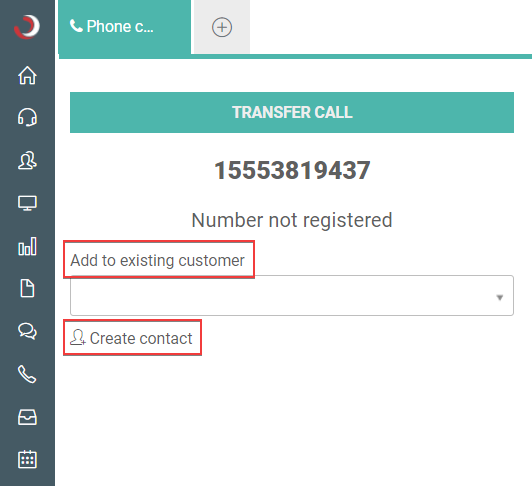
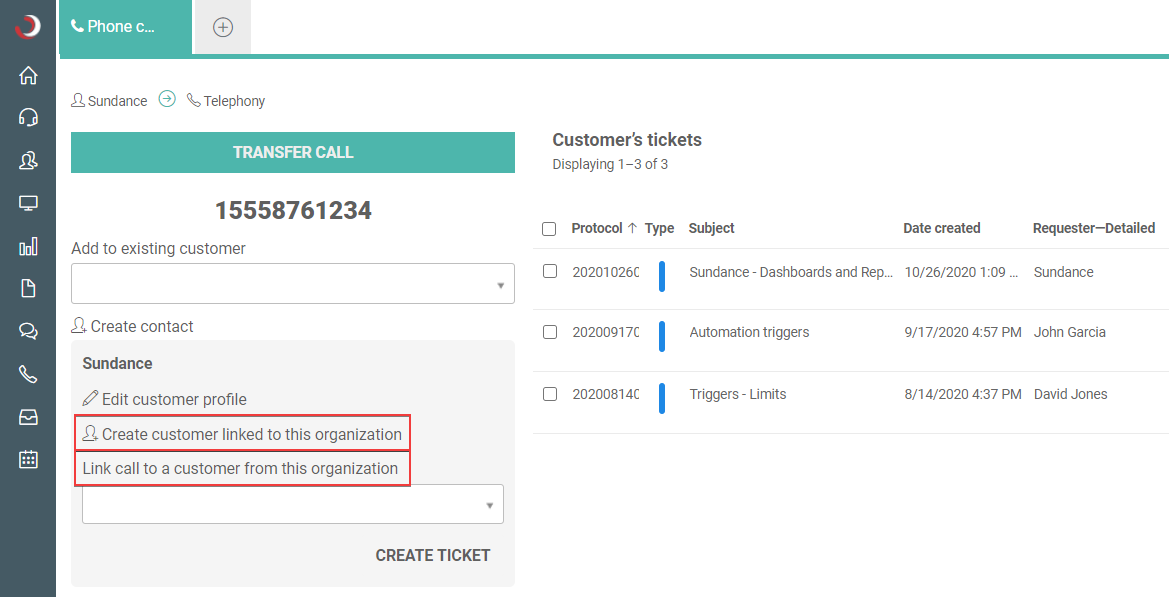
In some cases, the caller phone number will be the organization’s phone number. In this case, the caller will be identified as the organization itself.
If appropriate, you can either create a new customer linked to this organization, or associate the call to an exiting customer from this organization.
Associating phone calls with tickets
After associating the phone call with a customer, you can select a ticket in the ticket list on the left pane. Select Link call to ticket in the ticket form to associate the phone call with the ticket.

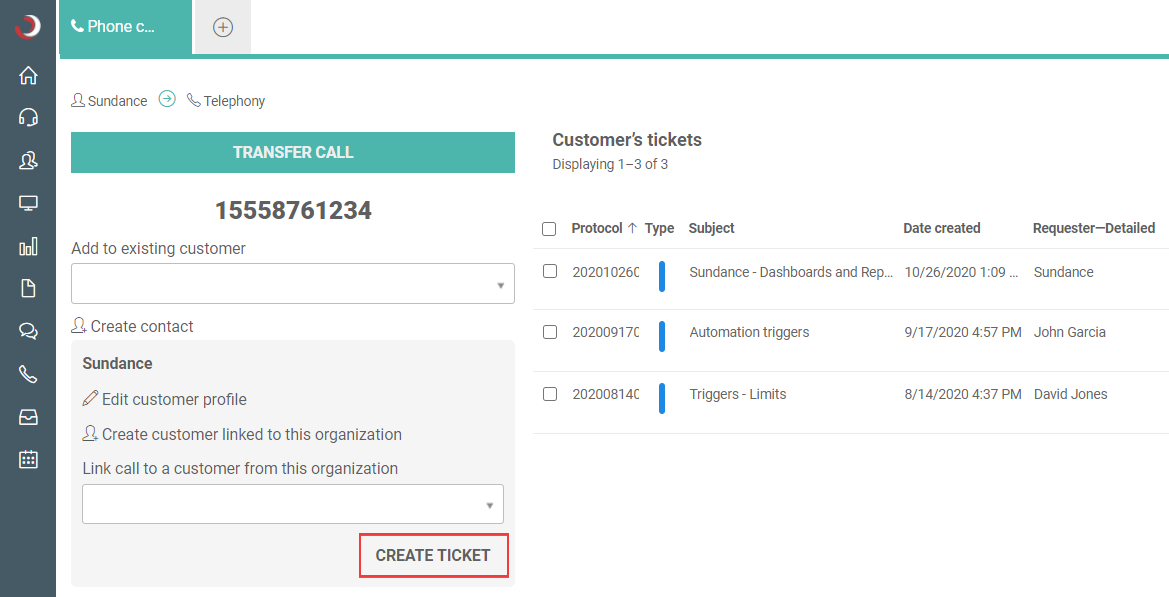
If instead you want to create a new ticket, you can select Create ticket in the active call screen.
|
|
Note Sometimes an agent may create a new ticket, but will forget to save the ticket before closing the window. In these cases, the system will recover the lost telephony ticket after 4 hours and include a ticket note with call details. |

Viewing call details on tickets
Details about the phone call will be added as a ticket note to the ticket associated with the call.
It will appear as a public ticket note from the customer that called, and will include the start and end times for the call. It will also include a link to the call recording if applicable.
Transferring calls
To transfer a phone call in Movidesk, select Transfer call in the active call screen.
Select an agent to transfer the call to. This will close the active call screen for the current agent, and open the active call screen for the other agent.
|
|
Warning Transferring calls in Movidesk only affects the active call screen. You must still transfer the phone call using your phone device or through your telephony system. |

Making a call from Movidesk
If outbound calls from Movidesk are enabled, you can select the phone icon next to the customer’s name on a ticket to call the customer.
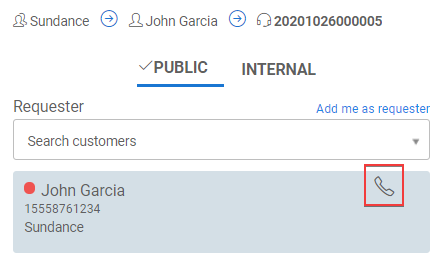
If the customer has more than one registered phone number, select which phone number you would like to call.
Select Call to place the call.